Technical Exercises Week 9 to Week 12
Technical Exercise 6 – Shot Composition
In this exercise, I learned the importance of staging shots from various angles to convey a story or narrative. By experimenting with different camera settings, I captured wide angles and explored framing techniques to portray my van in unique ways. You’ll notice the contrast between the worm’s-eye shot, which makes the van appear dramatic and cool, and the eye-level shots, which highlight the maintenance and constant repairs—the less glamorous side of owning an old van.
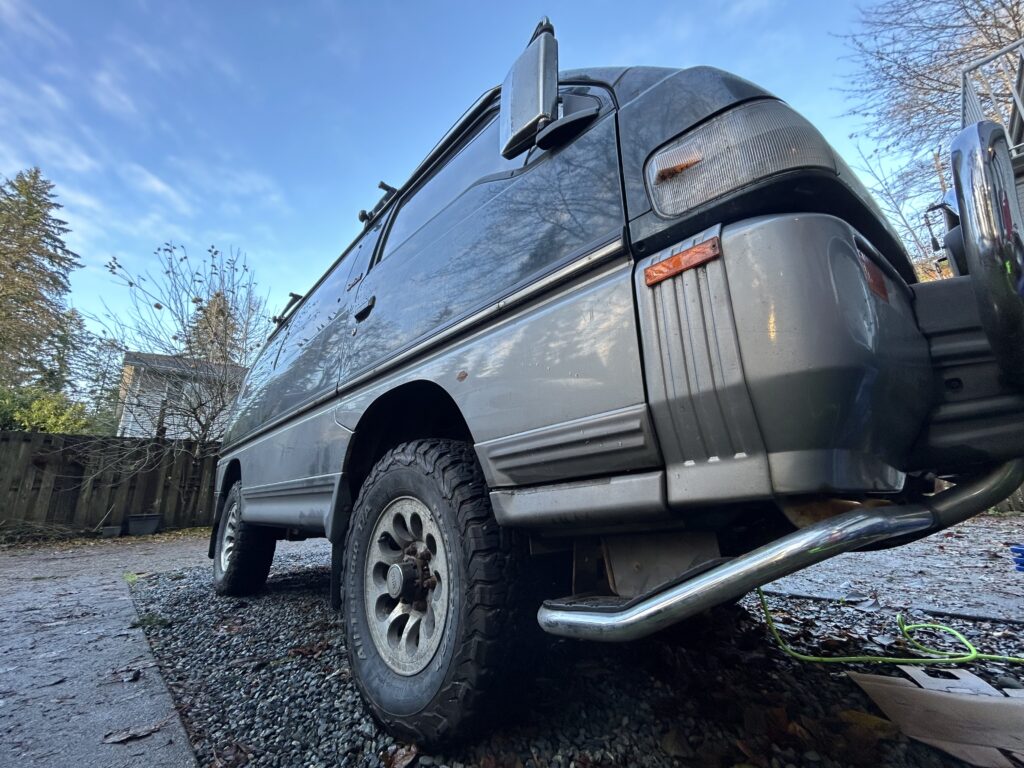
Medium Close up Low Angle
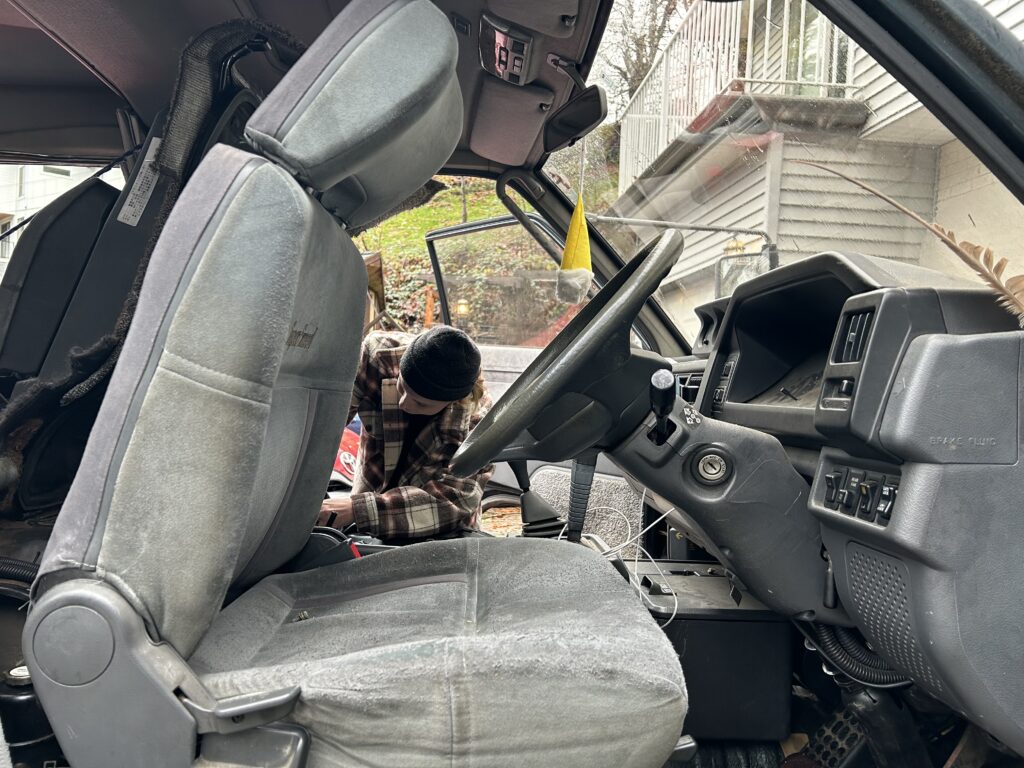
Medium Shot Eye level/Hip shot
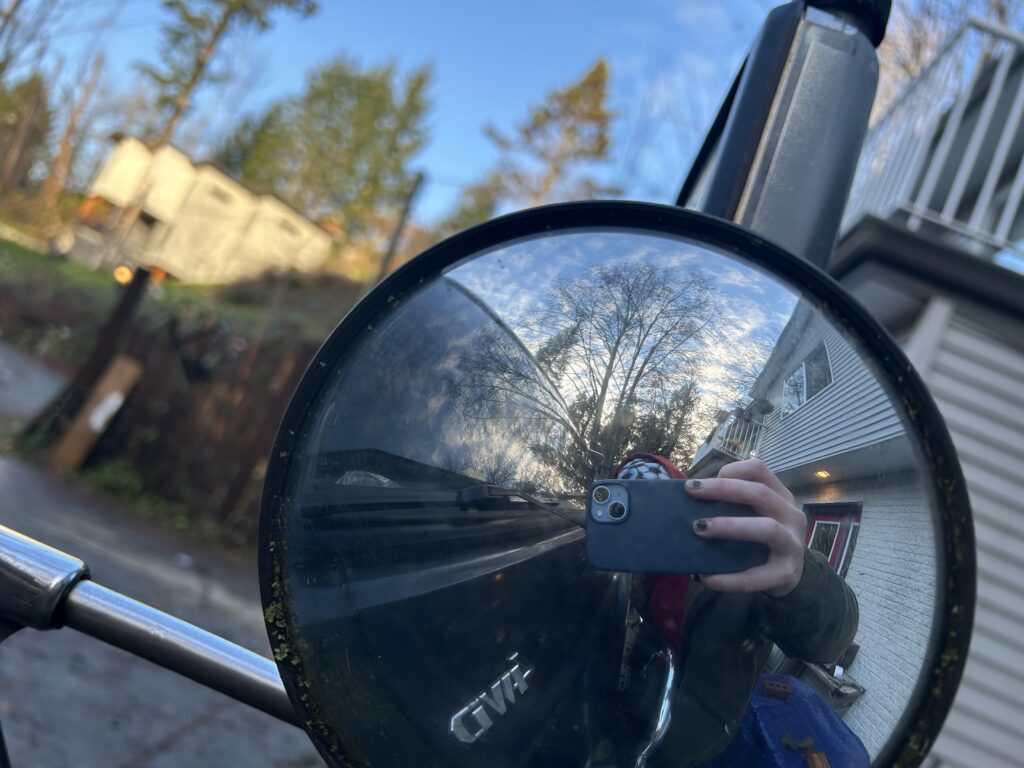
Extreme Close up Point of View
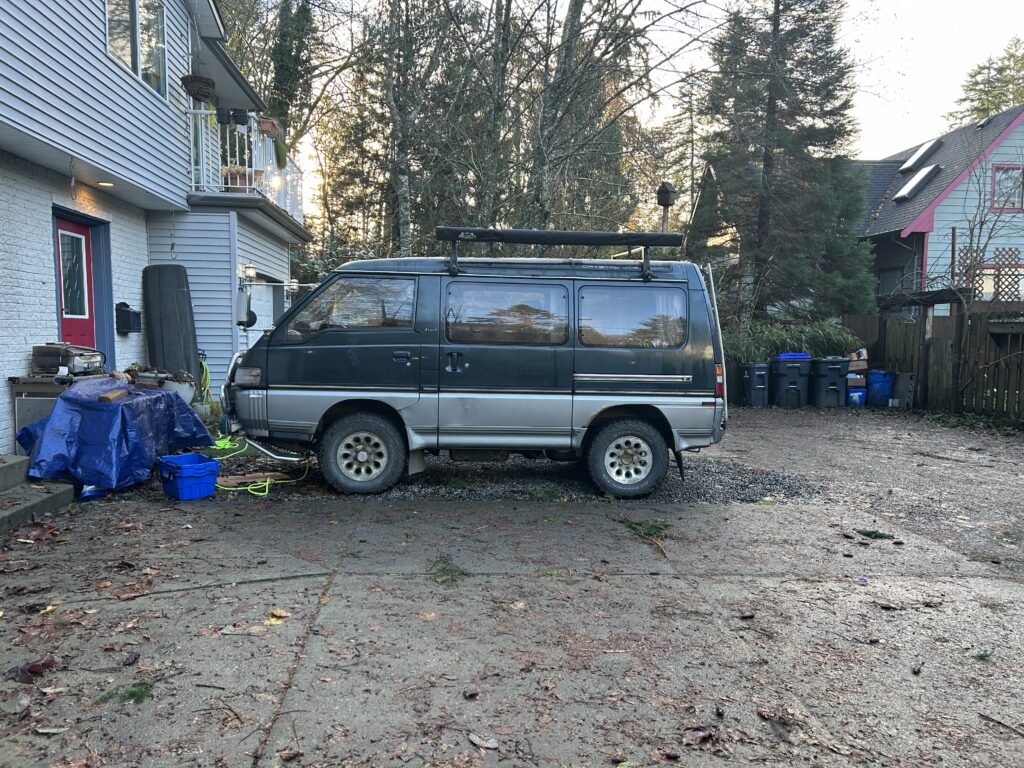
Full Shot Eye Level
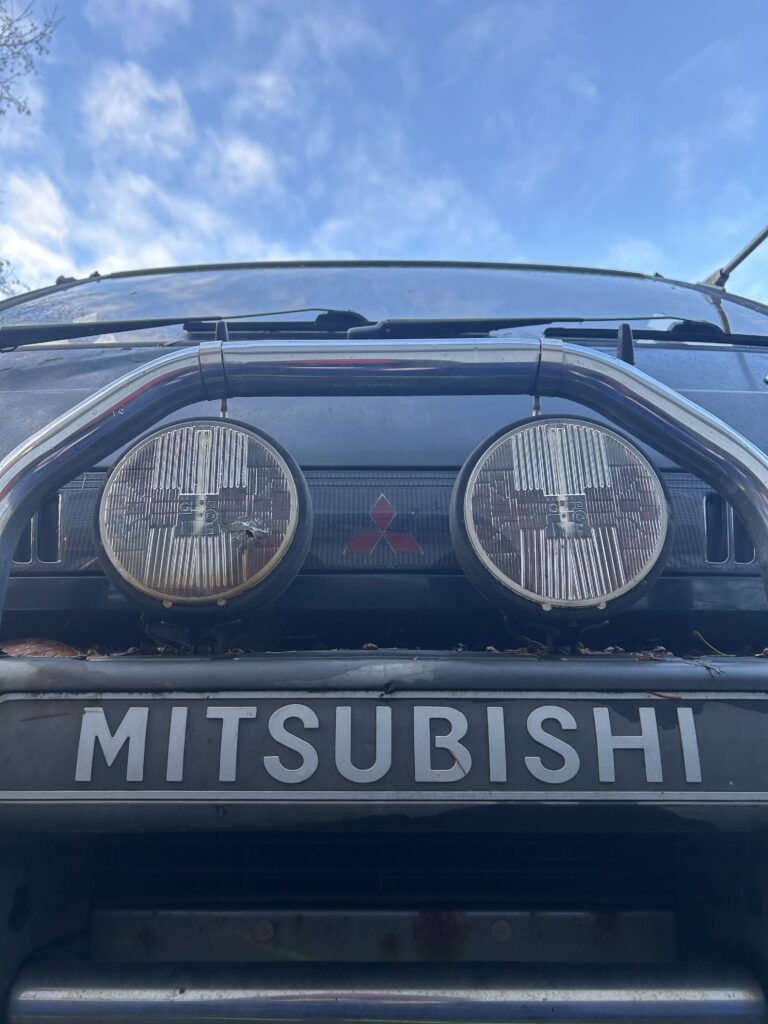
Close up Low Angle
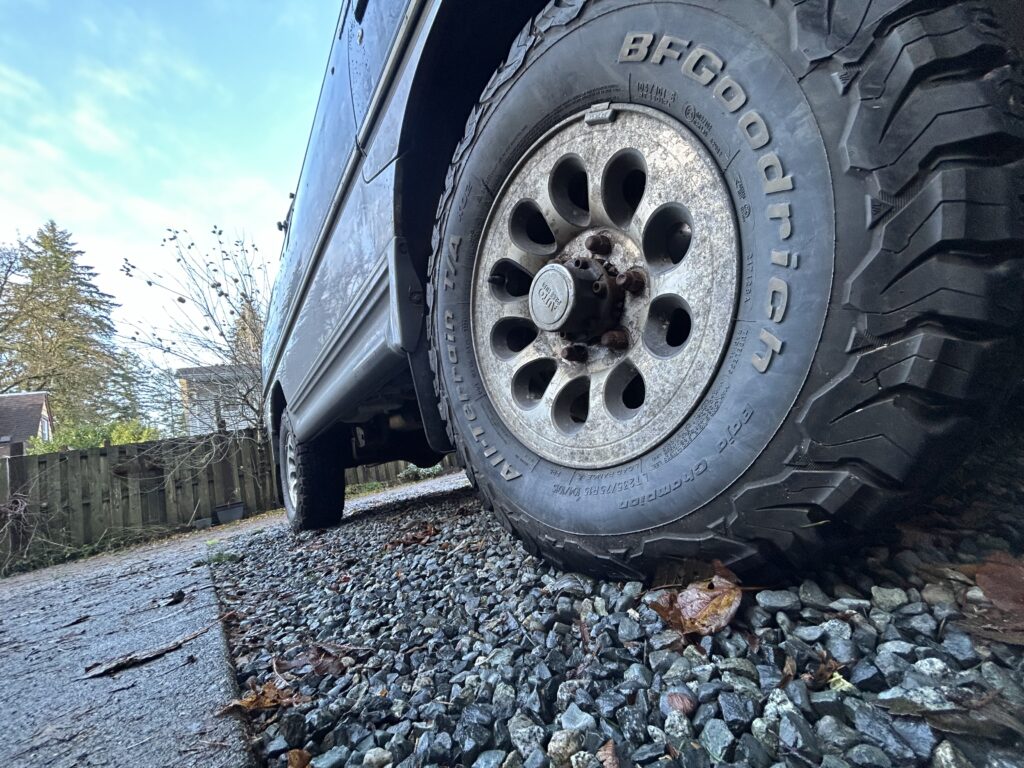
Extreme/Close up Low Agle Worm’s Eye
Technical Exercise 7 – video editing basics
This project focused on mastering foundational skills in Adobe Premiere Pro. I organized project folders, managed media with bins, trimmed clips, synced audio, create subclips, and adjusted the video scale for a polished result. I also applied the Warp Stabilizer to smooth out shaky footage, ensuring a professional finish and added transitions to ease the viewer’s experience. This exercise gave me a solid idea of professional video editing essentials, helping me understand how to produce higher-quality content without the burden of broken links and long rendering times.
Technical Exercise 8 – Titles and Stills
This week I focused on the fundamentals of creating titles in Adobe Premiere Pro and developing a better understanding of the Essential Graphics panel. I explored how to design and animate text, link assets like subtitles and text boxes, and personalize templates from Adobe Stock. It highlighted how simple and effective Premiere Pro can be for creating professional-looking titles with the right tools.
Technical exercise 9
Part 1: Colour Correct Basics
For 10.3, I used Adobe Premiere’s Lumetri Color tool to colour correct the first clip. I refined the tonal range by lowering black levels, adjusting contrast, and recovering details in highlights. To balance the colour, I warmed the image slightly using the temperature slider and enhanced saturation for natural, vivid tones. The result is a polished clip with improved depth, colour balance, and visual appeal, meeting the assignment’s requirements.
10.4 Colour Curves + Match
I used the Curves tool in Adobe Premiere to adjust the colour and contrast, starting with the Luma curve to set the black and white points and clean up the mid tones and highlights. Then, I fixed the colour balance by reducing blue in the highlights and warming up the skin tones using the red and blue curves. For matching shots, I copied settings between clips and used the “Apply Match” feature to adjust shadows, highlights, and midtones for consistency. Finally, I tweaked the saturation to make sure everything looked balanced and natural.
Part 2: Specialized Colour Effects
I learned how to apply and modify video effects to enhance and stylize clips with an overview on workflows. By using effects like Black and White, Tint, Auto Contrast, and Gaussian Blur, I explored how the order of operations affects the final look of a video. For example, I adjusted parameters to create warm, blurred edges and used masking to target specific areas of the frame. I also practiced sharing effects across clips using methods like copying, paste attributes, and creating presets, which streamlined the editing process and allowed for consistent visual storytelling.
Part 3 – Spot Colour Mask
In this project, I learned how to use masking, tracking, and spot colour effects to enhance video clips creatively. I practiced creating and tracking masks with the pen tool, refining them with feathering and expansion, and applying effects like colour tints to add depth to shot compositions. Using adjustment layers and the Leave Color effect, I isolated specific colours to make vibrant elements pop against a desaturated background. These tools were a fun and effective way to experiment with storytelling and bring clips to life!